> ## Documentation Index
> Fetch the complete documentation index at: https://docs.nuwa.dev/llms.txt
> Use this file to discover all available pages before exploring further.
# Service Key
> Obtain and configure SERVICE_KEY for your Nuwa-compatible services
## Overview
A Service Key is the serialized private key for a service-owned DID. It enables Nuwa services (e.g., MCP Server/Proxy, LLM Gateway) to authenticate/authorize, price requests, and settle revenue.
Please use a dedicated service DID to generate your service key, not your client/user DID. It may lead to unexpected behavior if you use the same DID for both.
## Prerequisites
* Access to [https://test-id.nuwa.dev](https://test-id.nuwa.dev) (cadop-web)
* A modern browser with Passkey or wallet support
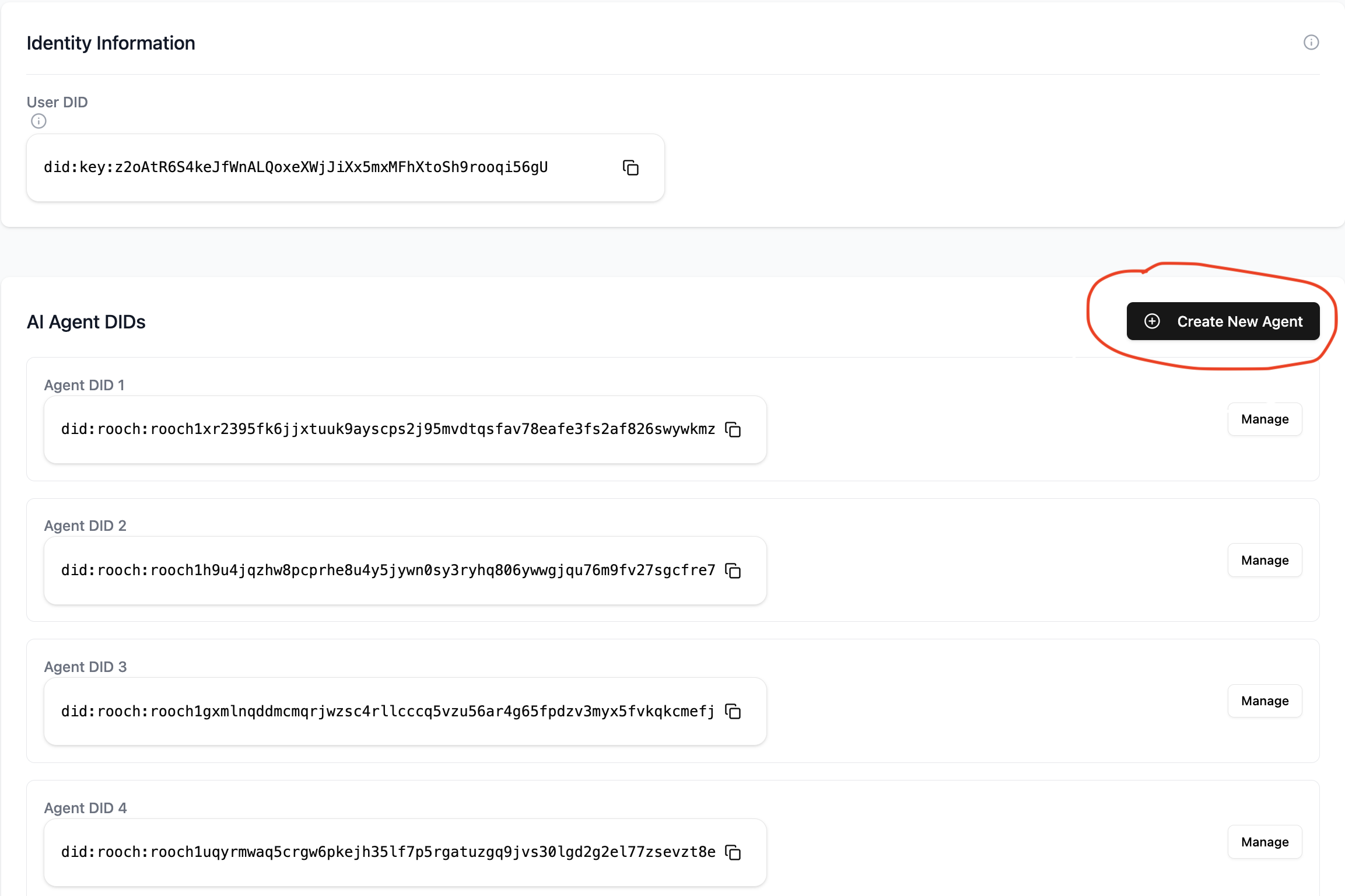
## Step 1 — Create a service-dedicated Agent DID
1. Sign in at [https://test-id.nuwa.dev](https://test-id.nuwa.dev).
2. Follow the onboarding to create an Agent DID (the app will claim minimal RGas automatically).
3. You will get an Agent DID like `did:rooch:...`.
 ## Step 2 — Generate ServiceKey and write to DID Document
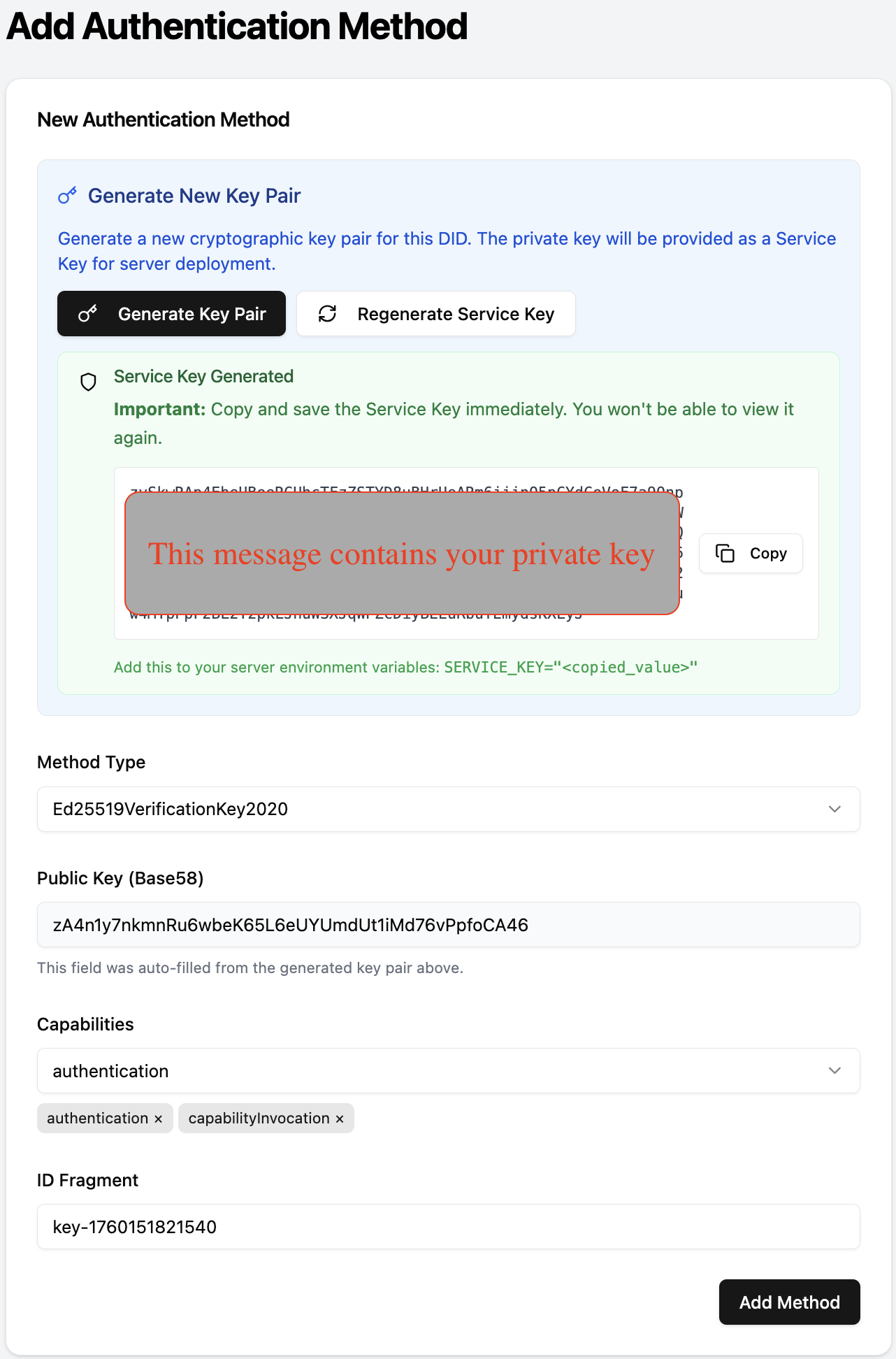
1. Open the Agent detail page → click "Add Authentication Method".
2. Click "Generate Key Pair" to create a service key pair.
3. Capabilities: select `authentication` and `capabilityInvocation`.
4. Submit to write the verification method to your DID Document.
5. Copy the generated Service Key immediately (it is shown only once) and store it securely.
## Step 2 — Generate ServiceKey and write to DID Document
1. Open the Agent detail page → click "Add Authentication Method".
2. Click "Generate Key Pair" to create a service key pair.
3. Capabilities: select `authentication` and `capabilityInvocation`.
4. Submit to write the verification method to your DID Document.
5. Copy the generated Service Key immediately (it is shown only once) and store it securely.
 ## Step 3 — Configure environment and start your service
Use the copied key as `SERVICE_KEY`:
```bash theme={null}
export SERVICE_KEY=""
```
* MCP Server: see the "Set environment variables and run" step in the MCP Server guide.
* MCP Proxy: set `serviceKey: "${SERVICE_KEY}"` in your `config.yaml`.
* Other services (e.g., LLM Gateway): set `SERVICE_KEY` according to that service's configuration.
Security tips:
* Inject via env vars; never commit keys to source control.
* Rotate keys periodically and separate keys per environment (dev/test/prod).
## Step 4 — Add your service to the DID (Service record)
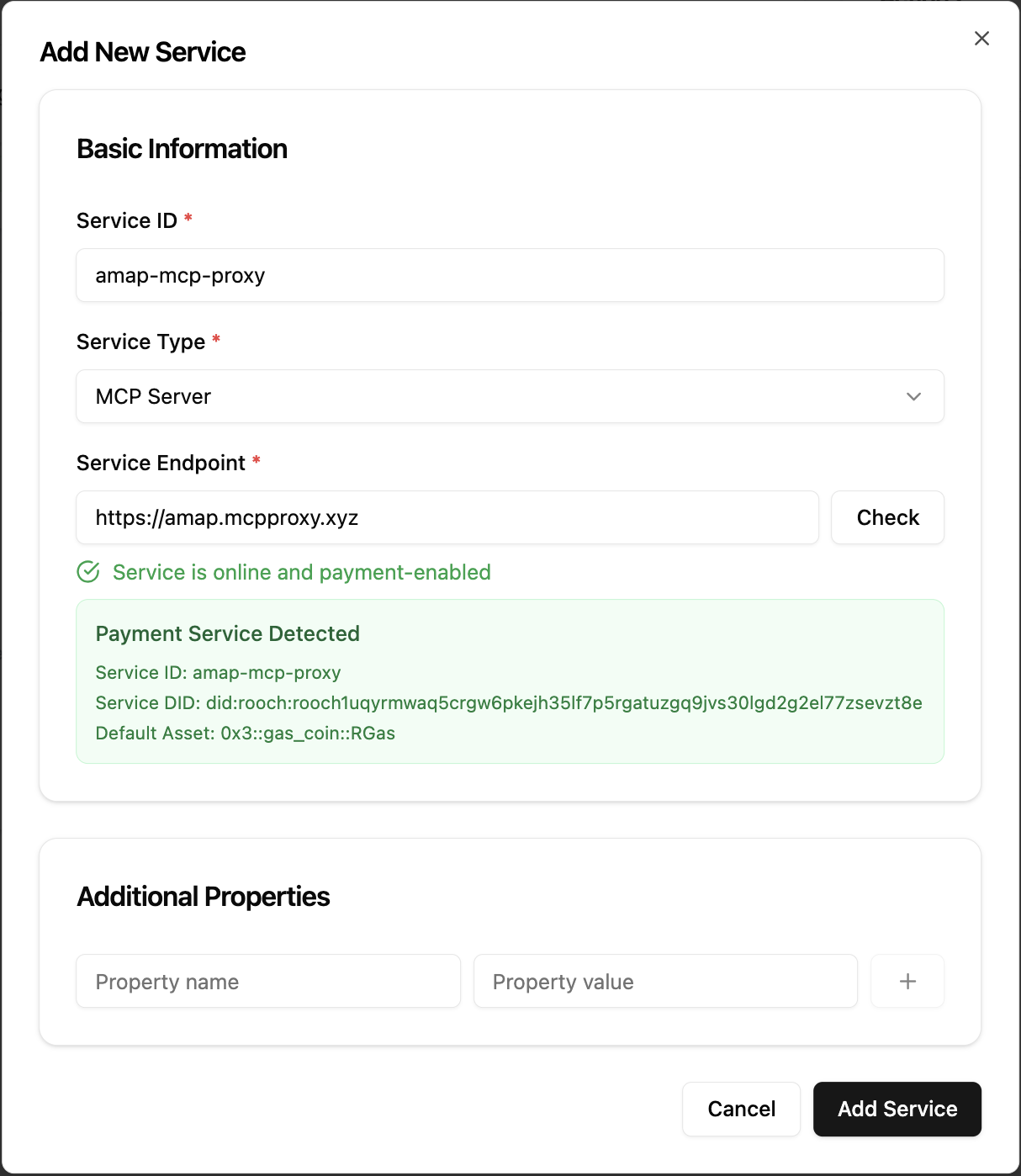
1. In the Agent detail page, open Services → "Add Service".
2. Enter your service endpoint (e.g., `https://your.domain/mcp`).
3. Ensure the well-known health check passes, then save.
## Step 3 — Configure environment and start your service
Use the copied key as `SERVICE_KEY`:
```bash theme={null}
export SERVICE_KEY=""
```
* MCP Server: see the "Set environment variables and run" step in the MCP Server guide.
* MCP Proxy: set `serviceKey: "${SERVICE_KEY}"` in your `config.yaml`.
* Other services (e.g., LLM Gateway): set `SERVICE_KEY` according to that service's configuration.
Security tips:
* Inject via env vars; never commit keys to source control.
* Rotate keys periodically and separate keys per environment (dev/test/prod).
## Step 4 — Add your service to the DID (Service record)
1. In the Agent detail page, open Services → "Add Service".
2. Enter your service endpoint (e.g., `https://your.domain/mcp`).
3. Ensure the well-known health check passes, then save.
 ## Step 5 — Verify and see revenue
1. Call your service using an appropriate client. For MCP-based services you can also use Cap Studio's MCP Debug tool.
2. When channel revenue reaches the claim threshold, the service auto-claims.
3. View balances, withdraw funds, and audit history in the [Revenue dashboard](/build-caps/revenue).
## Troubleshooting
* Passkey/wallet not available: try another browser or re-register.
* Insufficient gas: wait for faucet claim or retry.
## Best Practices
* Environment isolation (dev/test/prod).
* Secure backups of ServiceKey.
## Related
Build a pay‑per‑call MCP server directly using the Payment Kit
Turn existing MCP into pay‑per‑call with the Proxy
View balances, withdraw, and audit history
## Step 5 — Verify and see revenue
1. Call your service using an appropriate client. For MCP-based services you can also use Cap Studio's MCP Debug tool.
2. When channel revenue reaches the claim threshold, the service auto-claims.
3. View balances, withdraw funds, and audit history in the [Revenue dashboard](/build-caps/revenue).
## Troubleshooting
* Passkey/wallet not available: try another browser or re-register.
* Insufficient gas: wait for faucet claim or retry.
## Best Practices
* Environment isolation (dev/test/prod).
* Secure backups of ServiceKey.
## Related
Build a pay‑per‑call MCP server directly using the Payment Kit
Turn existing MCP into pay‑per‑call with the Proxy
View balances, withdraw, and audit history